Introduction #
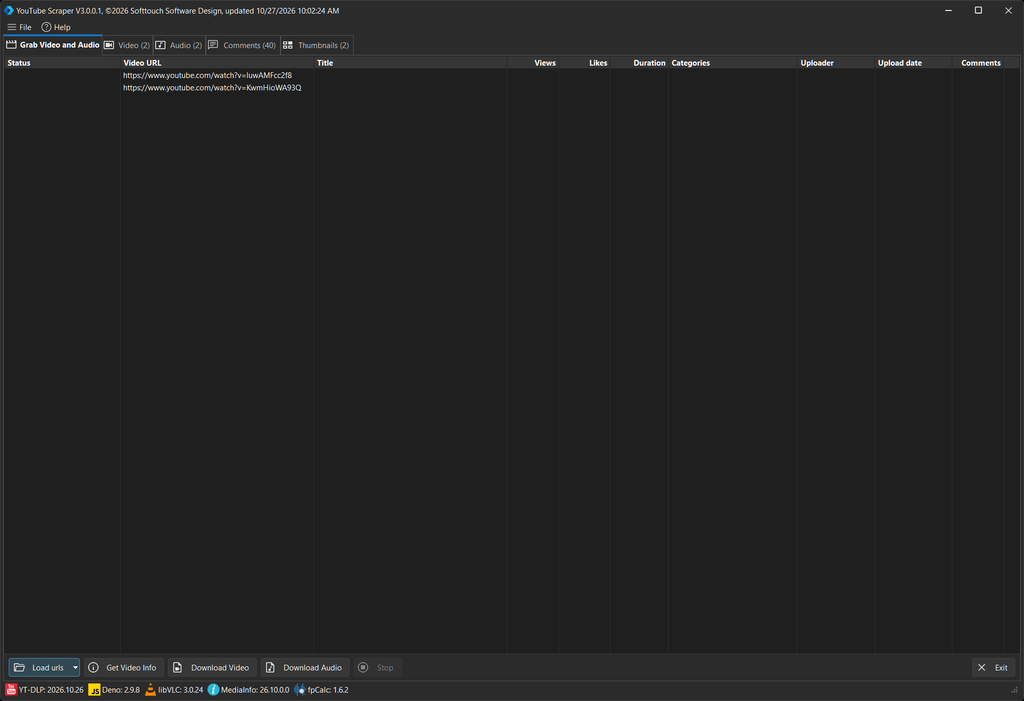
After importing YouTube URLs, you can use Get Video Info to retrieve detailed information about each video.
YouTube Scraper collects video metadata and updates the video list with the retrieved information. Depending on your configuration, it can also retrieve video thumbnails and comments.
Starting Video Information Retrieval #
Make sure your YouTube URLs have been imported into the application.
Click the Get Video Info button at the bottom of the main window to start the retrieval process.
YouTube Scraper processes the imported URLs and retrieves the available information for each video.
During this process, the metadata columns in the video list are populated as the information becomes available.
Retrieved Video Information #
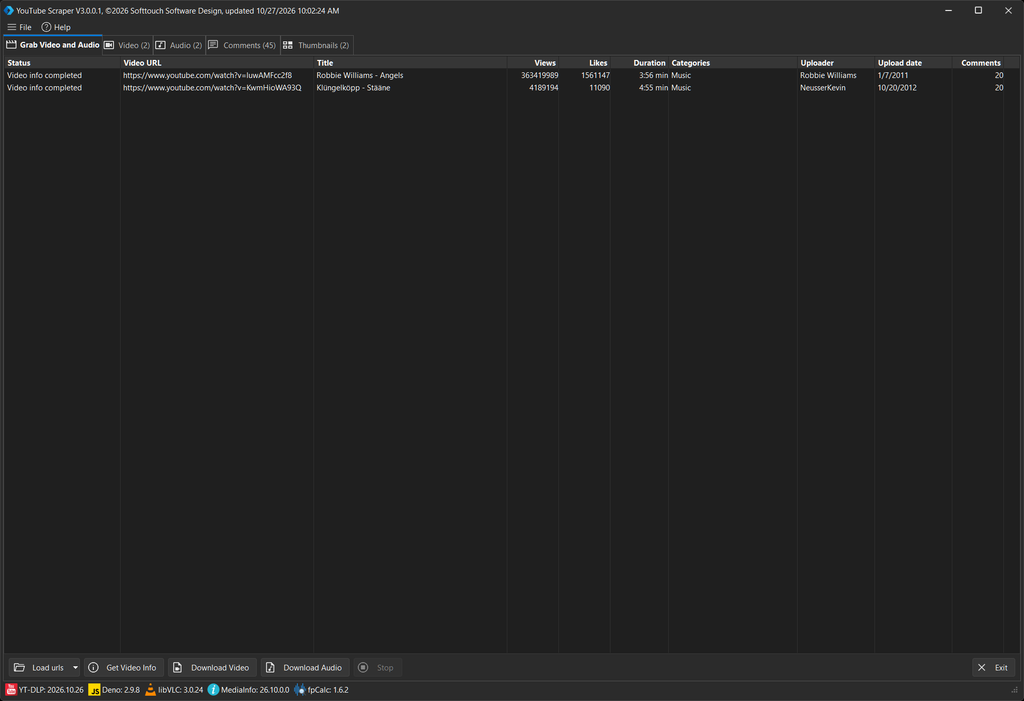
After successful retrieval, the video list displays the available information for each video.
The information includes:
- Title – The title of the YouTube video.
- Views – The number of video views.
- Likes – The number of likes.
- Duration – The length of the video.
- Categories – The category assigned to the video.
- Uploader – The name of the channel or user who uploaded the video.
- Upload date – The date the video was published.
- Comments – The number of comments retrieved.
Additional information may be available in other columns. Use the horizontal scrollbar to view columns that are outside the visible area.
Retrieving Thumbnails #
YouTube Scraper can retrieve video thumbnails automatically as part of the Get Video Info operation.
Thumbnail retrieval and storage are controlled through the Configuration window under File → Configuration.
The following options are available:
- Save Thumbnail as File – Saves the retrieved thumbnail as a separate image file.
- Embed Thumbnail in Video – Enables embedding the thumbnail in the downloaded video file.
Retrieved thumbnails can be viewed in the Thumbnails tab.
Retrieving Comments #
YouTube Scraper can also retrieve comments as part of the Get Video Info operation.
To enable this functionality, open File → Configuration and activate Extract Comments.
You can also specify the maximum number of comments to retrieve per video using Max. Comments to Fetch.
Retrieved comments are displayed in the Comments tab.
Processing Status and Results #
The Status column shows the processing result for each video.
When information has been retrieved successfully, the status changes to:
Video info completed
The counters displayed next to the Video, Audio, Comments and Thumbnails tabs indicate the number of available entries in each section.
Once retrieval is complete, you can review the collected information in the corresponding tabs.
What’s Next? #
Now that you have retrieved the video information, you can explore the available video and audio entries and learn how to manage them in the next chapters.