Introduction #
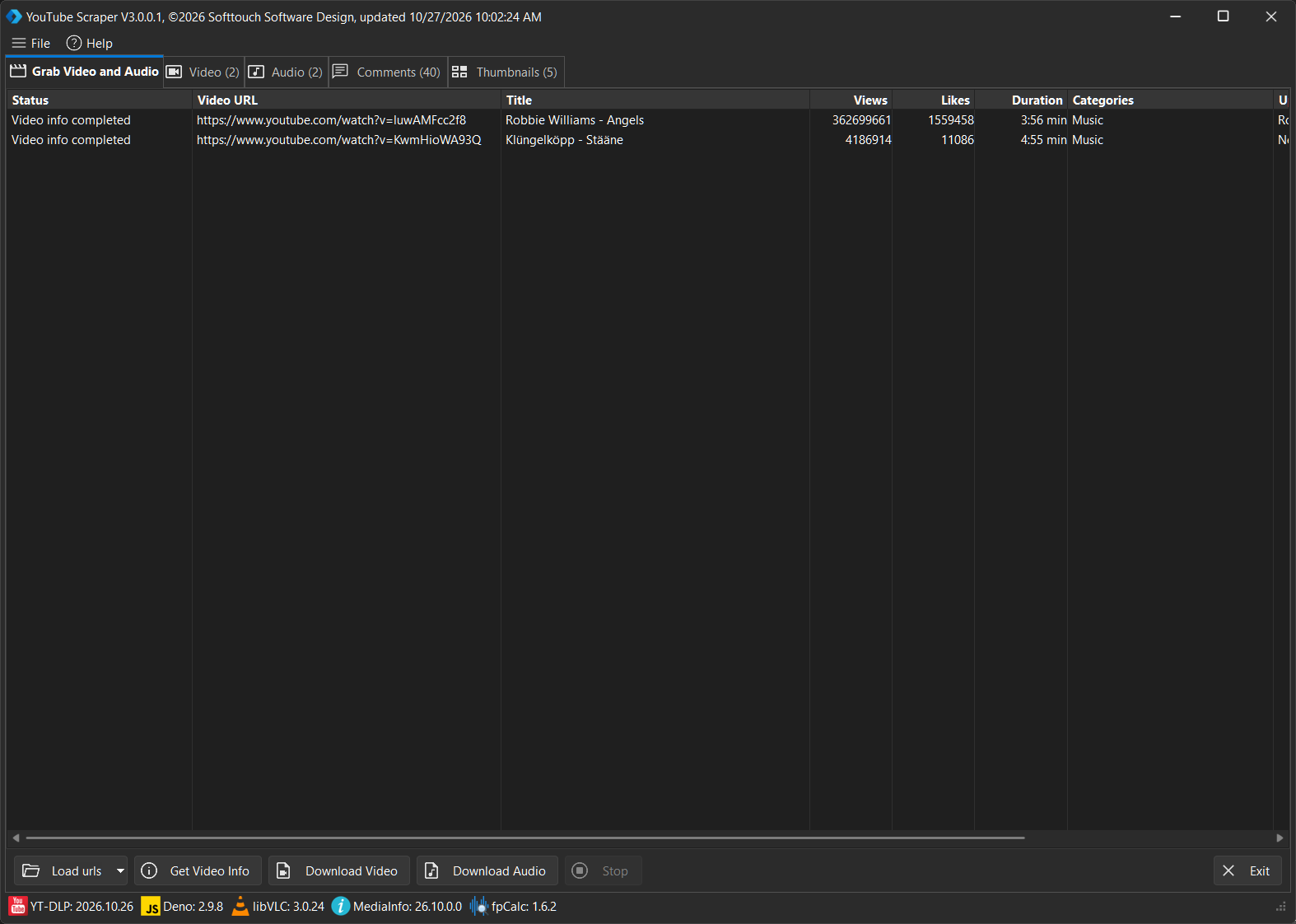
The YouTube Scraper main window provides access to all the application’s main functions. From here, you can load YouTube URLs, retrieve video information, download videos and audio, and manage the collected data.
The interface is divided into several areas, each serving a specific purpose.
Main Application Tabs #
At the top of the main window, you will find the following tabs:
- Grab Video and Audio – The main workspace for loading YouTube URLs, retrieving video information and starting downloads.
- Video – Displays the collected video information.
- Audio – Provides access to the audio-related information.
- Comments – Displays comments retrieved from YouTube videos.
- Thumbnails – Displays the thumbnails retrieved for the videos.
The numbers displayed next to some tab names indicate the number of available entries in the respective section.
Video List #
The central area of the main window contains the video list. It displays the imported YouTube URLs and the information retrieved for each video.
Depending on the available information, the list includes columns such as:
- Status – Shows the current processing status of a video.
- Video URL – The original YouTube video URL.
- Title – The title of the video.
- Views – The number of views.
- Likes – The number of likes.
- Duration – The video duration.
- Categories – The category associated with the video.
Additional columns may be available. If the list contains more columns than can fit in the window, you can use the horizontal scrollbar at the bottom to access them.
Main Action Buttons #
The buttons at the bottom of the main window provide quick access to the most frequently used functions.
- Load URLs – Loads YouTube URLs into the application. The button also provides a dropdown menu for additional loading options.
- Get Video Info – Retrieves information about the loaded YouTube videos. Depending on your configuration, this operation can also retrieve video thumbnails and comments.
- Download Video – Starts downloading the selected video content.
- Download Audio – Starts downloading the selected audio content.
- Stop – Stops the current processing operation when available.
- Exit – Closes YouTube Scraper.
The individual functions are explained in more detail in their respective chapters.
Menu Bar #
The menu bar at the top provides access to additional application functions.
- File – Provides access to file-related functions and the application configuration.
- Help – Provides access to help-related functions.
For example, the thumbnail and comment retrieval options can be enabled or disabled under File → Configuration.
Status Bar #
The status bar at the bottom of the main window displays the versions of the installed components used by YouTube Scraper.
This allows you to quickly check which versions of the required third-party components are currently available, including yt-dlp, Deno, libVLC, MediaInfo and Chromaprint (fpcalc).